How to turn any photo into a hand-pressed stamp (free, browser-only)
Hand-pressed stamps — the imperfect, ink-bled, slightly off-register impression that reads as "made by hand" — show up on product labels, food packaging, brand marks, journal stickers, and zine covers. The look is hard to fake cleanly: pixel-perfect software output looks too sterile, real rubber-stamping needs a press and ink pad, and Photoshop bevel filters drift toward stock-art "rubber stamp" instead of the soft, organic impression you actually want.
Here's a faster way using InkKit — drop a photo, pick a preset, download a PNG that looks like it came off a hand-pressed block. Background removal is automatic, three presets cover the common looks (sketch line work, classic stamp, aged vintage block-print), and exports go up to 2500 px for 300 DPI print. Free, browser-only, no signup.
Prefer reading? The full step-by-step is below.
Why a dedicated tool, not Photoshop
Photoshop / Affinity
→ Threshold + halftone + texture overlay, tuned by hand
→ Edge wear and ink-bleed need separate brushes
→ No background removal in the same pipeline
→ 20–60 minutes per stamp, every time
InkKit
→ Three presets shipped with the right intensity baked in
→ Background trim happens before the stamp pipeline
→ Eight curated ink colors, three presets, one click
→ Under a minute per stamp, free
The hand-pressed look is actually a narrow aesthetic — a small range of threshold values, scratchy gouge marks and edge wrinkle reads as "stamp"; outside that range it drifts into halftone, sketch, or generic high-contrast B&W. That's why a dedicated tool with three opinionated presets finishes faster than a general image editor with knobs you tune from scratch every session.
The three presets
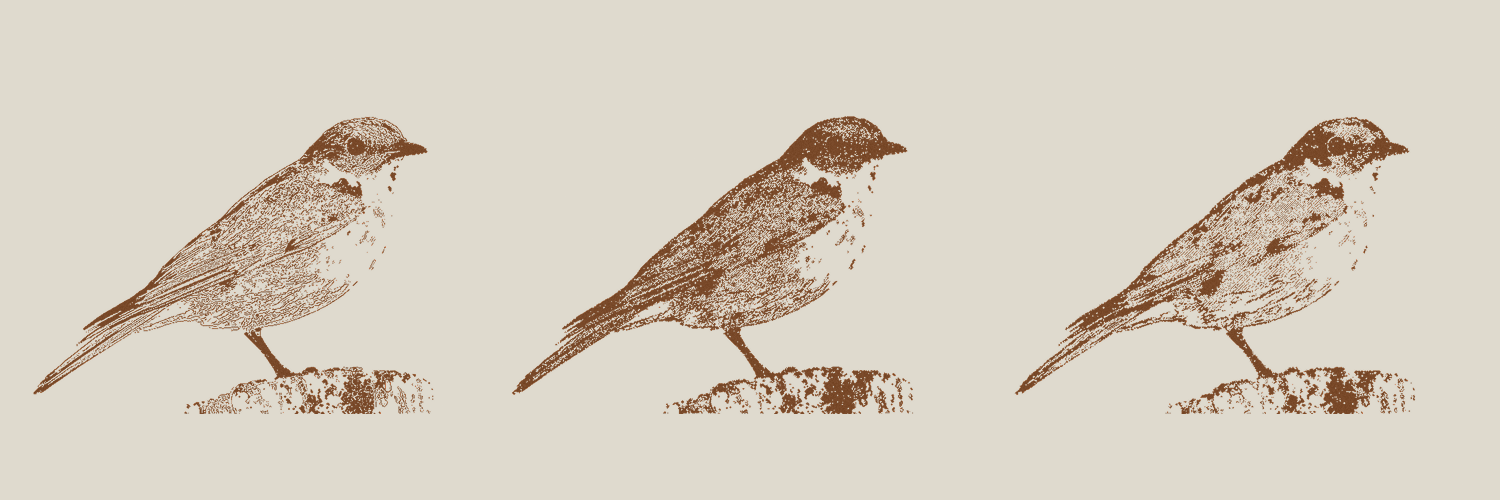
All three presets share the same engine — binary threshold, scratchy gouge marks, edge layer, shadow handling — and differ in intensity. Pick by intent, not by photo.
Sketch
Crisp 1 px line work, no hatching. Reads as a quick pen-and-ink contour. Best for product line drawings, logo redraws, technical labels.
Stamp
Standard hand-pressed rubber-stamp impression. Default. Best for product labels, branded swag, Etsy hang tags, food packaging marks.
Vintage
Aged / worn block-print with prominent edge wrinkle. Reads as letterpress or older. Best for journal stickers, zines, "est. 1954" style logos.
Step-by-step
1. Drop your photo
Open ink.ohiyo.app and drop in a JPG, PNG or WebP. Photos with one clear subject on a contrasting background work best — the auto-trim cleans up the background before the stamp pipeline runs. A logo or hand-drawn mark photographed on white works as well as a real subject.
2. Pick a preset
Tap Sketch, Stamp, or Vintage. Each preset ships with threshold, wear, and smoothing tuned for the look — one click usually lands close to the final image. Switching presets at any time is non-destructive; the source photo is untouched.
3. Pick an ink color
Eight curated ink colors, in order: navy, burgundy, red, ink black (default), forest, riso blue, mustard, plum. The palette is deliberately small — these are the colors that read as "ink" without drifting into generic clipart.
4. Adjust ink amount, wear and smooth (optional)
Ink amount raises or lowers the threshold — more ink fills in detail, less ink keeps it spare. Wear dials the gouge / scratch intensity (0 = clean, 5 = heavily worn). Smooth blurs the source before binarization — useful when the photo is grainy or detail is too noisy to threshold cleanly. Cleanup trims background more or less aggressively.
5. Pick export size, download PNG
Two export sizes: 1200 px for screen, social, and small stickers (~3 MB PNG, fast); 2500 px for 300 DPI print at ~8 inches (~8 MB, slower). Background of the export PNG is transparent regardless of the preview background you chose.
Adding stamp text (optional, $5 unlock)
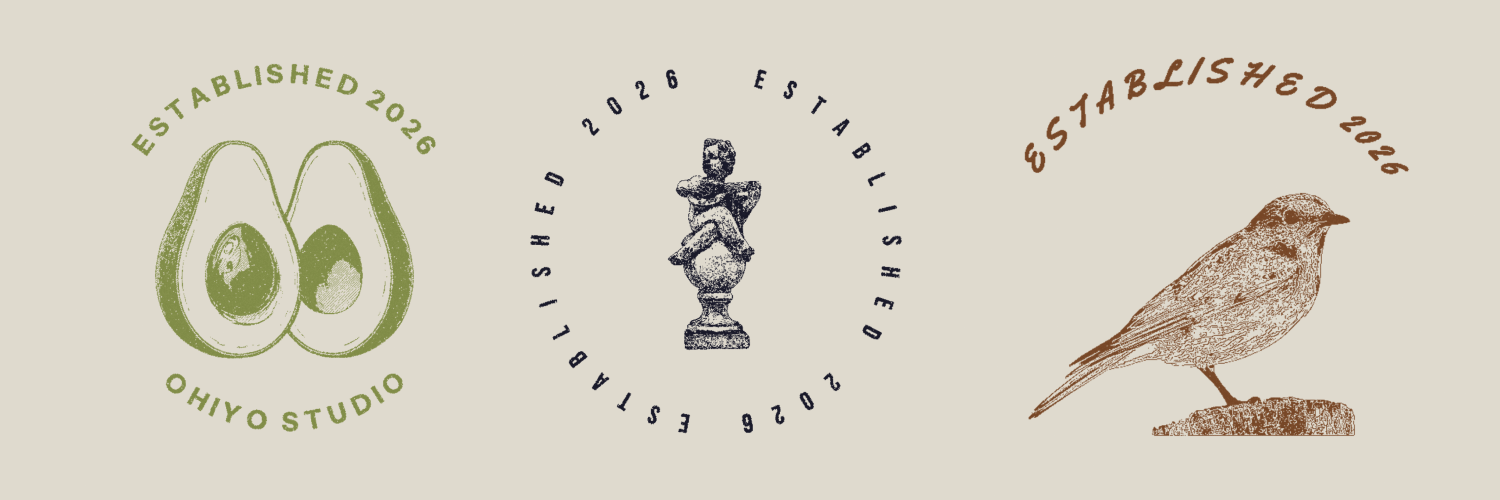
Type into Top arc text or Bottom arc text and the source image is composed into a circular stamp layout — centered subject, ring borders, text wrapping the arcs. Pick from four fonts (Sans, Serif, Script, Slab), choose split layout (top arc + bottom arc) or ring (single text wrapping the full 360°), and tune letter spacing.
Stamp text is the only feature behind a paywall: $5 one-time, lifetime access, unlimited exports. Plain photo-to-stamp without text stays free forever. The $5 covers the text engine; that's the whole difference.
What it works well for
- Product labels and hang tags — coffee bags, soap wrappers, ceramics, candles. The stamp aesthetic is a shorthand for "small batch / made here".
- Etsy listing thumbnails — shop logos and listing watermarks that read consistently across product photos.
- Brand marks — turn a logo file into a stamped variant for letterheads, business cards, packaging seals.
- Journal and zine stickers — Vintage preset for letterpress-style stickers; Sketch for line-art accents.
- Wedding and event seals — circular stamp text wrapping a monogram or icon, for invitations and favours.
When not to use it
- Color-rich photos that need to stay color — InkKit is binary by design (ink + background). For palette-preserving recolors of vector art, use Color Swap instead.
- Animation — PNG export only. No GIF, no video. For animated SVG, see AutoKit.
- Photorealistic output — the whole point is the imperfect, organic impression. If you need clean retouching, this is the wrong tool.
- SVG / vector output — InkKit exports raster PNG. The scratchy ink marks are pixel-level by nature.
Pricing recap
Free: drop a photo, pick a preset, pick an ink color, tune sliders, download PNG at either size. $5 one-time unlocks stamp text (top / bottom arc, ring layout, four fonts, letter spacing). 7-day refund. Support at support@ohiyo.app.